iService includes an integrated AI assistant, Copilot, that can be used for general assistance or rewriting text. The buttons are automatically added to agent rich text editors when the integration is configured in the External APIs page by pasting your organizations openAI API key generated from the openai.com website. See the External APIs page for details on setting up the integration.
The integration includes two modes: generating new text from a prompt window, and evaluating and revising existing text with the editor. This allows agents to create create new answers, summarize existing content, or improve the writing of existing content. Your prompts are augmented with system prompts added by iService as guardrails to keep responses relevant.
There are two options within the copilot integration: a general prompt window and prewritten prompts for improving writing. The example below illustrates how to use the general prompt window.
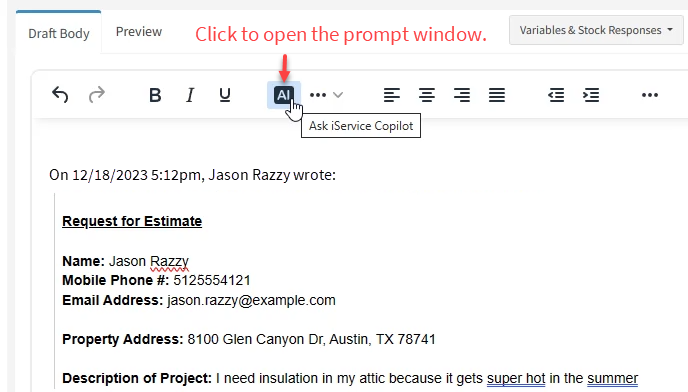
To open the prompt window, click the main AI button in the editor.
The general prompt window button
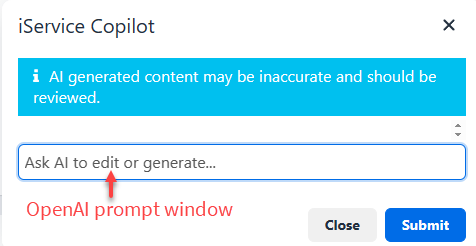
When you click the AI button, you will see the empty prompt window ready for you to type your prompt.
The copilot prompt window
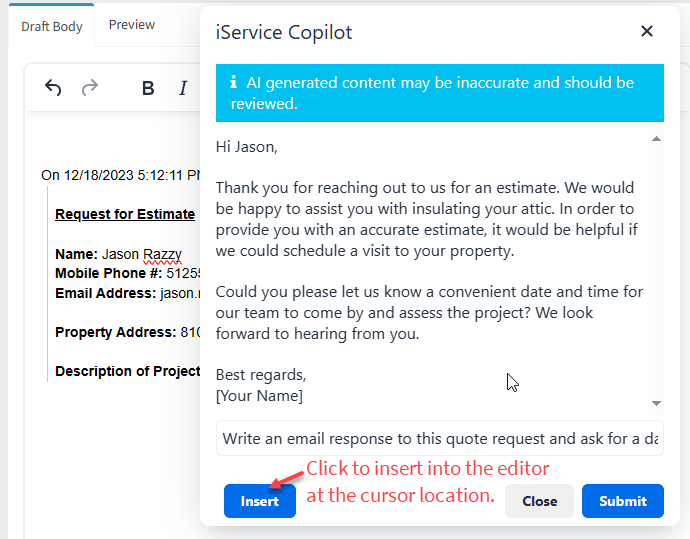
In our example, we ask copilot to write a response to a request for an estimate. We enter the prompt along with the customer question to get a generated answer, and click Submit. The answer is generated and an insert button is provided to paste the answer into the draft agent response.
A generated response ready for insertion
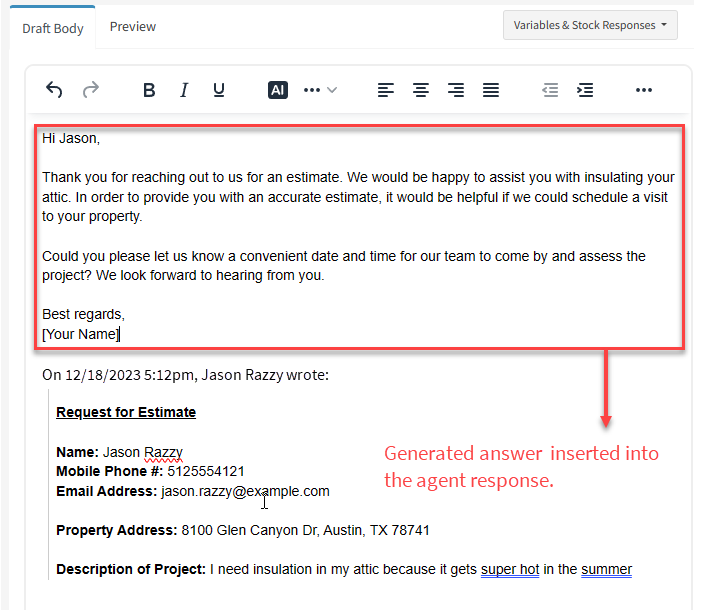
After clicking the Insert button, the agent response is ready for final review and sending. One advantage of using copilot over stock responses is the level of personalization. The LLM is very good at identifying small details, like the details of the request, and incorporating them into the response. In this example, the customer was requesting insulation for an attic so the response is tailored to that need.
Generated response ready for review
It's important to review the text generated by AI to ensure it's accurate and does not include fictitious information. Although your prompt is augmented with requests to only provide answers when the LLM is sure of the answer, unexpected behavior can occur with any AI model.
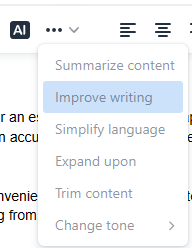
The writing assistant provides prewritten prompts that you can apply to existing text within the editor. The menu is not enabled until you select text. The options included are shown below. Insert the updated text using the Insert button after the text is generated.
Writing assistant options
Writing Option
Purpose
Integrated Prompt
Summarize content
Use this option to summarize long text for a quick read. This helps agents get a quick understanding of the customer needs.
Provide the key points and concepts in this content in a succinct summary.
Improve writing
This prompt will rewrite the text to improve the grammar and description while keeping the original meaning.
Rewrite this content with no spelling mistakes, proper grammar, and with more descriptive language, using best writing practices without losing the original meaning.
Simplify language
This will reduce the amount of text used to make it easier to read.
Rewrite this content with simplified language and reduce the complexity of the writing, so that the content is easier to understand.
Expand upon
Use this to provide a more complete description with more details.
Expand upon this content with descriptive language and more detailed explanations, to make the writing easier to understand and increase the length of the content.
Trim content
If the text is too long and includes redundant information, this will streamline the content to eliminate excess details.
Remove any repetitive, redundant, or non-essential writing in this content without changing the meaning or losing any key information.
Change tone
Use this to change the tone of the text to fit the conversation. There are five options to choose from after you select content in the editor.
Professional - Use a more formal tone in the writing.
Rewrite this content using polished, formal, and respectful language to convey professional expertise and competence.
Casual - Use a more casual tone in the writing.
Rewrite this content with casual, informal language to convey a casual conversation with a real person.
Direct - Make the content more directed to the customer.
Rewrite this content with direct language using only the essential information.
Confident - Write the content in a way that indicates the writing knows what they are talking about.
Rewrite this content using compelling, optimistic language to convey confidence in the writing.
Friendly - Make the content less formal and more comforting to the customer.
Rewrite this content using friendly, comforting language, to convey understanding and empathy.
 iService includes an integrated AI assistant, Copilot, that can be used for general assistance or rewriting text. The buttons are automatically added to agent rich text editors when the integration is configured in the External APIs page by pasting your organizations openAI API key generated from the openai.com website. See the External APIs page for details on setting up the integration.
  Using the iService Copilot Prompt Window