To create a new knowledge base article, click the add article button.
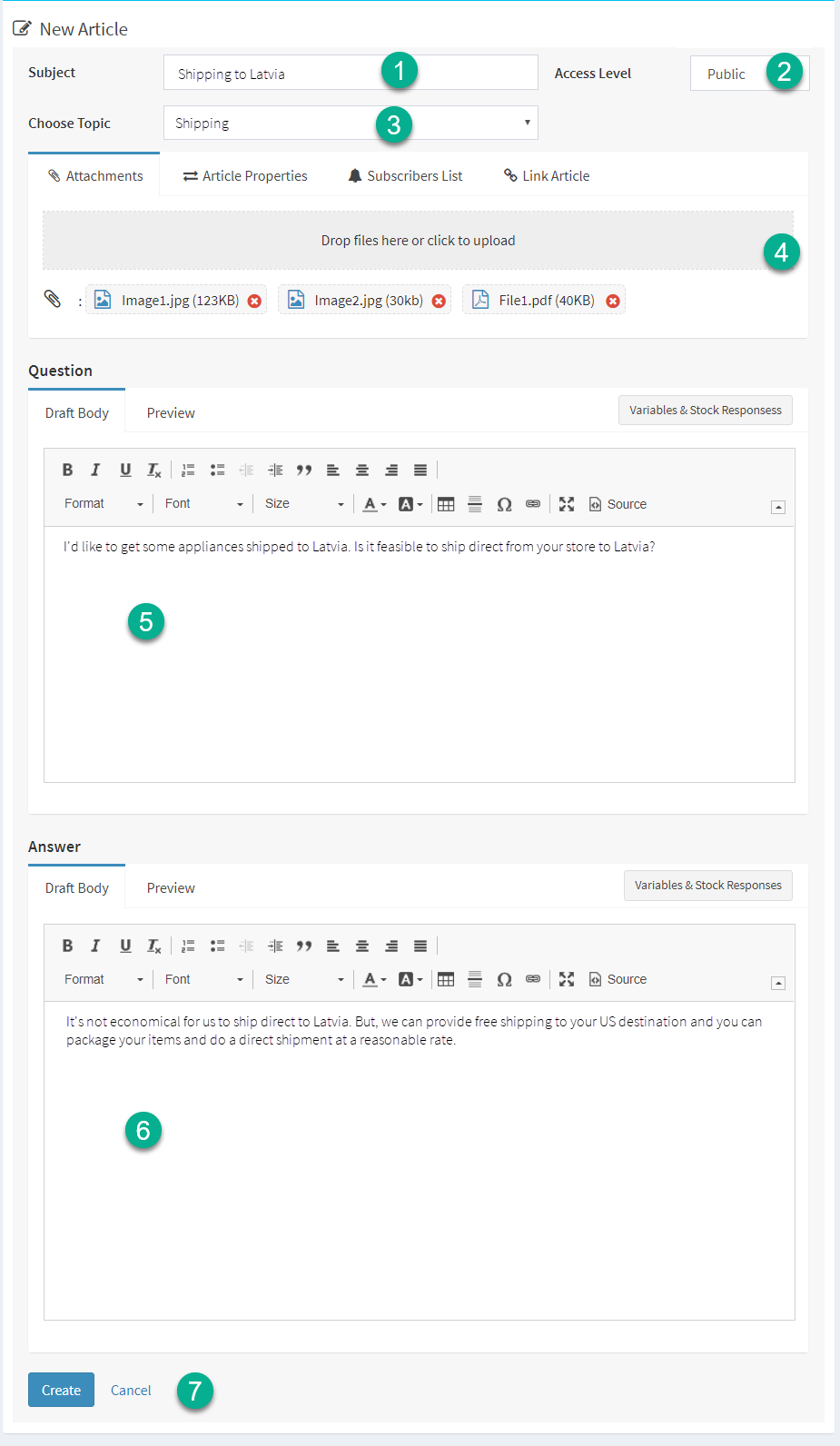
The new article panel will open as shown below. Enter your details and click the save button.
Creating a new knowledge base article
1.Enter a short description as the subject of the article.
2.Choose an access level for your article. Private articles can only be viewed by iService agents, while public articles can be viewed by customers and anonymous users.
3.Choose the topic for your article. Keep in mind that if you select a private topic, only agents will be able to view the article.
4.This section of the new article panel has three tabs: attachments, article properties, and link article. You can drag-and-drop file attachments or click to select them from your computer. Use the delete button to remove attachments. The article properties tab is used to categorize the information in your knowledge base to make it easier to find. The link article tab is used to link your article to related articles in the database.
5.Enter the details for the question portion of your article in this rich text editor.
6.Enter the details for the answer portion of your article in this rich text editor.
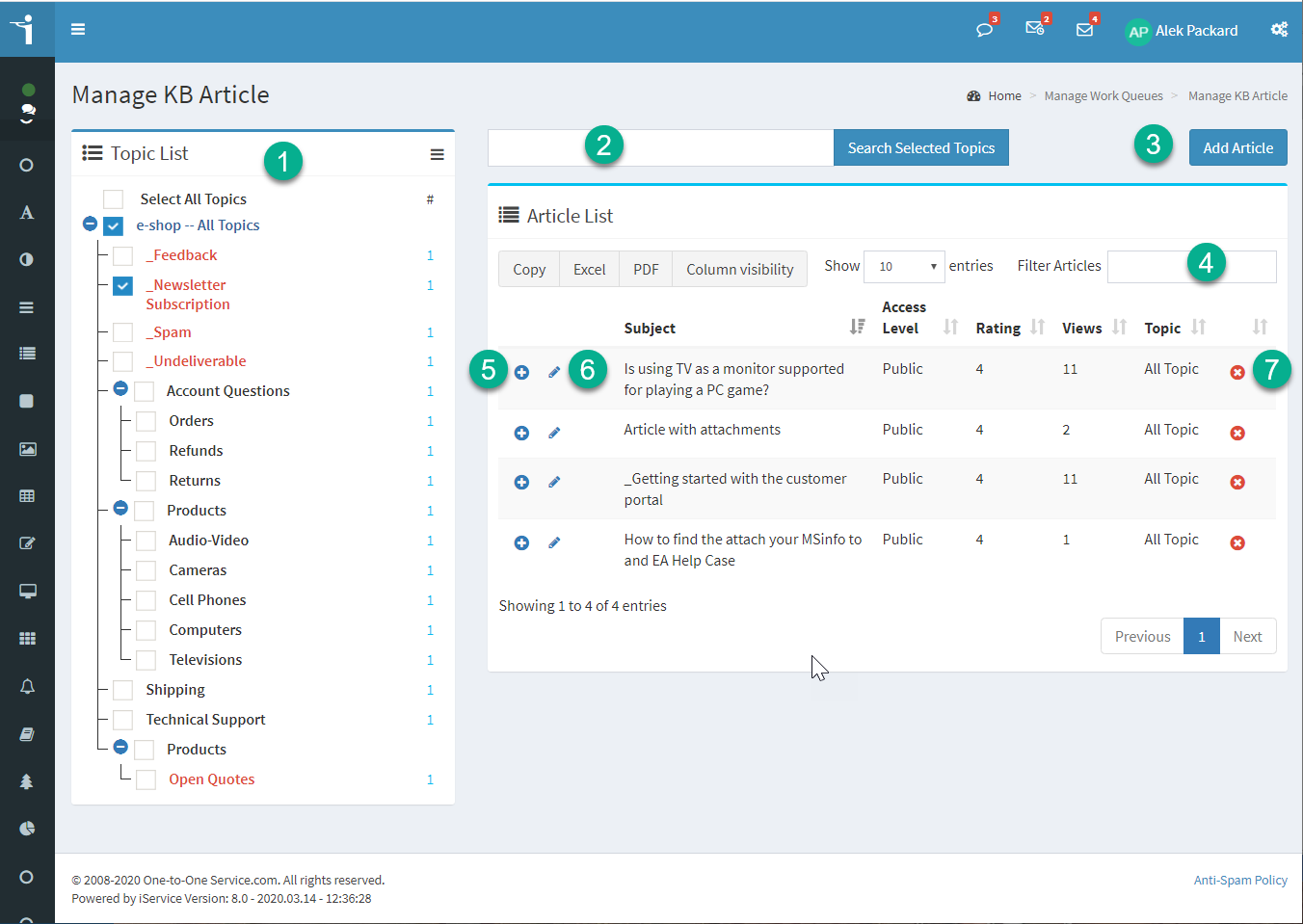
There are two ways to update existing KB articles: Quick update of summary information, and editing the article details. Use the quick edit pencil (6) to update the subject and access level of an article without expanding article details.
Use the Expand/Collapse icon (5) to edit the contents, change the topic, or attach files.
Editing an existing article
The page elements are as follows.
1.Articles are displayed in a similar format to the manage messages page. They are organized by topic and displayed when the topic is selected in the topic list. The hamburger icon in the top right of the topic list is used to expand and collapse the topic tree to provide additional space when working with articles.
2.You can search for articles to edit using the " search selected topics" box.
3.Use the add article button to add a new article to your knowledge base.
4.You can filter the list of articles using the filter box within the article list.
5.When you find the article that needs editing, click the + icon to expand the article. This opens the article details panel. See below for more details on full article editing.
6.If you only need to edit the summary information (subject, access level, and topic), use the edit pencil next to the subject of the article. Clicking the pencil will toggle these three fields into edit mode. After you make your changes click the save button.
Editing the summary information for an article
7.To delete an article, click the delete button to the right of the article information.
The Article Details Panel
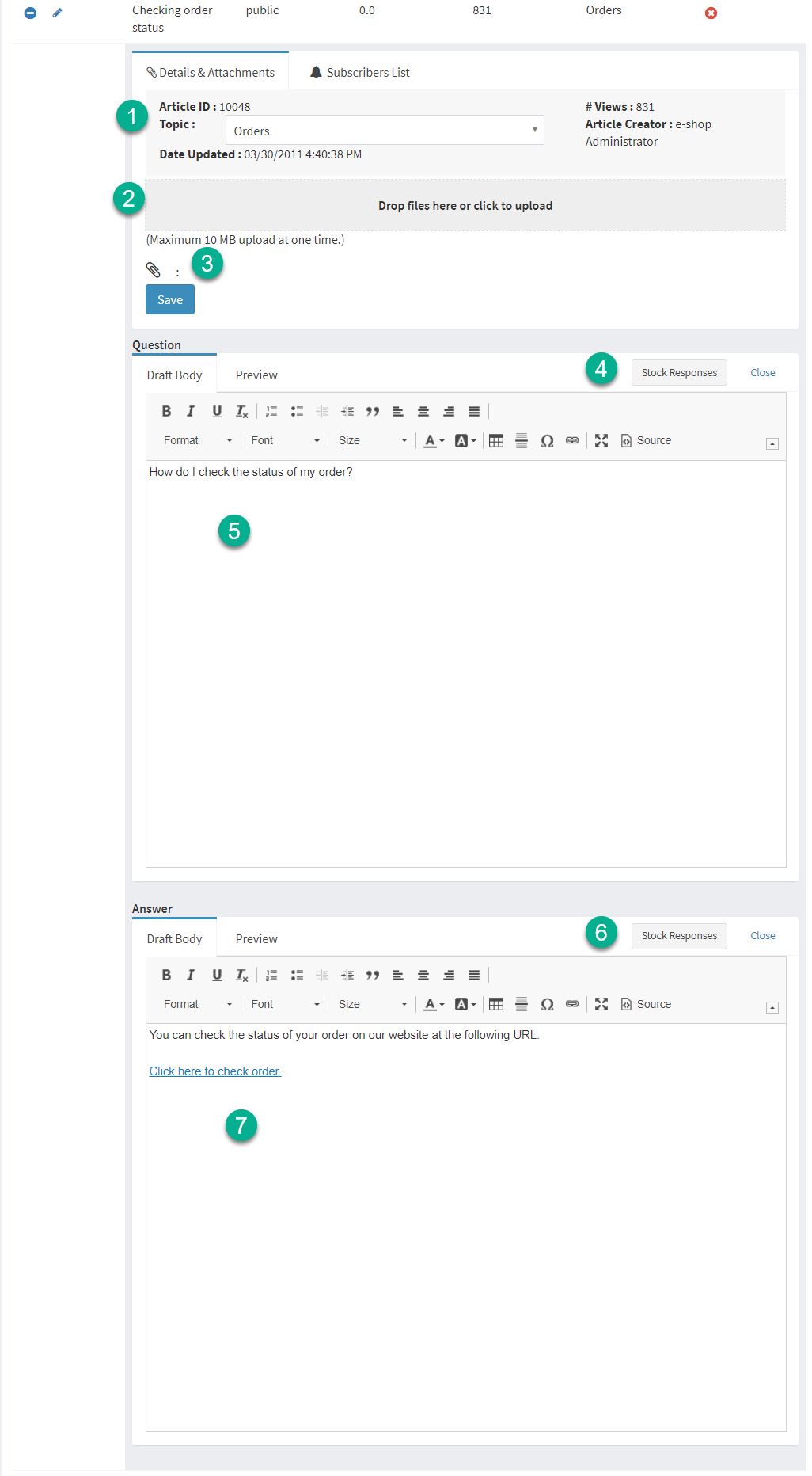
When you expand an article, the article details panel is shown similar to the example below. Use this view to edit the full details of the article.
Editing a knowledge base article
1.This section contains summary information and the topic for the article. You can change the topic by picking a new one and saving your changes.
2.You can drag and drop files here or select them from your computer by clicking this section.
3.Files that have been added are displayed below the file attachment section. To remove a file, click the delete button next to the file.
4.Use the stock response picker to insert pre-written text into the Question. If you have text that is commonly used within your articles, use this process to save time when creating or editing articles.
5.Create the question portion of the article in this rich text editor.
6.Same as 4 above, except your selections will be pasted into the answer portion of the article.
7.Create the answer portion of the article in this rich text editor window.
Using the Stock Response Picker
Stock responses provide a convenient way to insert frequently used content into your KB articles. For example, if you often use a table of information in your articles, you can create a table with a standard design and save it as a stock response. This saves you time when you’re creating articles that use that content. To learn more about creating stock responses, visit the Stock Responses section of this user guide.
Using the stock response picker
There are two available sections to KB articles, a question and an answer. Each editor has its own stock responses picker, but the content is the same. Place your cursor inside the editor where you want to insert your content, then select the stock response from the picker. The content is inserted at the cursor location.
Limitations
The knowledge base doesn’t support the use of iService variables, so do not insert variables into your predefined stock responses designed for use in the knowledge base. Also, the picker only presents stock responses that are within the article’s segment.
Alert Message
You must select a topic for your article before the stock response picker can be used. This is because responses are limited to an article’s segment, and the segment isn’t known until you assign a topic. You will see the notice below indicating a topic must be chosen when your article doesn’t have a topic selected.