The Logged In Agents page provides real‑time visibility into which agents are currently logged in, how actively they are working, and whether any agents require attention due to inactivity or unassigned work. This page is designed for supervisors and operations teams who need to monitor email‑based workflows and ensure consistent message handling.
This page functions similarly to the Logged In Chat Agents view but is tailored specifically for email assignment behavior, including Get Next workflows and multi‑inbox environments.
Purpose
Use this page to:
•Identify agents who are logged in but not actively working
•Detect assignment gaps where messages are available but not being taken
•Monitor agent activity levels and time since last action
•Review segment access and workload distribution
•Support exception reporting and compliance monitoring
Page Overview
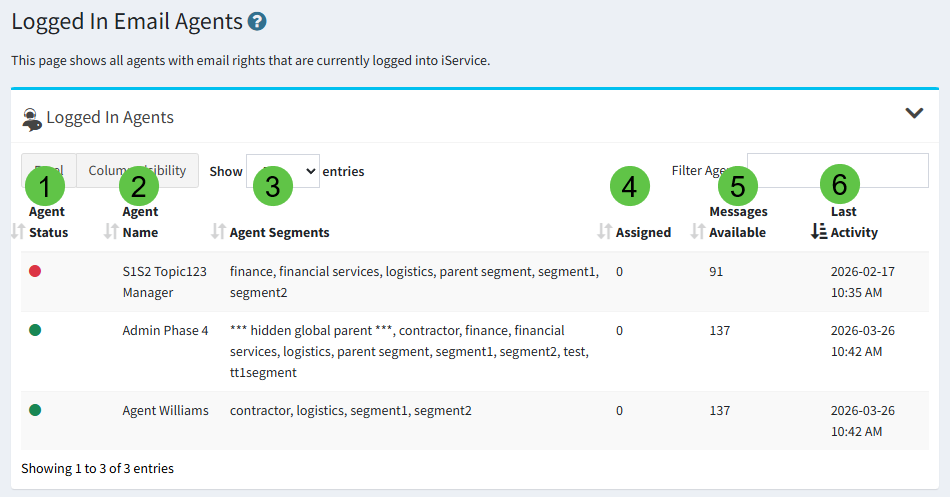
The page displays a dynamic table listing all agents who are currently logged in to iService. Each row represents one agent and includes key operational indicators. The page updates dynamically as agent activity changes.
1. Agent Status - A color‑coded indicator showing whether the agent is working as expected.
Green — Agent has a question assigned and has been active within the past 10 minutes. When they exceed 10 minutes of inactivity, they become yellow.
Yellow — Agent has a question assigned but has been inactive for more than 10 minutes OR Agent has no question assigned but has been active within the past two minutes.
Red — Agent has no messages assigned and has been inactive for more than two minutes.
Status is calculated using assignment counts, and inactivity duration.
2. Agent Name - The name or email address of the agent being monitored.
3. Agent Segments - The segment access each agent has in iService. Managers can filter on these segments to limit the view to agents that work in their segment.
4. Assigned - The number of questions that are currently assigned to the agent. This includes the My Message Inbox and any custom inboxes used by workflows.
5. Messages Available - The total number of questions that are available to the agent, including the Get Next number plus available questions in custom inboxes.
6. Last Activity - Shows how long it has been since the agent performed any action in iService.
This value matches the Last Activity time stamp shown on the Agent Admin page and includes actions such as:
•Opening a message
•Sending an answer
•Resolving a message
•Navigating within the application
How Supervisors Use This Page
Monitor Real‑Time Workload
Quickly see which agents are actively working and which may need coaching or reminders. If the Manage Messages page (or other monitoring page) shows agents available but a growing message queue, use the Logged in Agents page to see if any agents are idle. There can be many reasons for an agent to become idle, including a lack of assigned skills or segment access. Those details are not displayed on the Manage Messages page for brevity, so managers use this page to drill down on staffing in real-time.
Identify Assignment Gaps
If messages are available but not being picked up, supervisors can:
•Investigate agent inactivity
•Confirm segment access
•Adjust assignment rules
•Trigger alerts or notifications
Support Compliance and Productivity
The page can be used alongside exception reporting to identify agents who are out of compliance with expected workflows.