Open a web browser and enter the login name and password provided by your administrator for your iService tenant. The standard login screen is shown below.
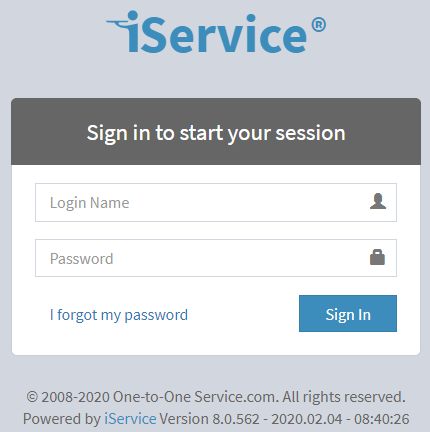
The standard login screen
 Logging In With Google, Microsoft, or Okta (Open ID)
If your iService tenant is configured for logging in with your Google or Microsoft account, you will see additional buttons in the login panel. These settings are controlled from the OpenID settings page.
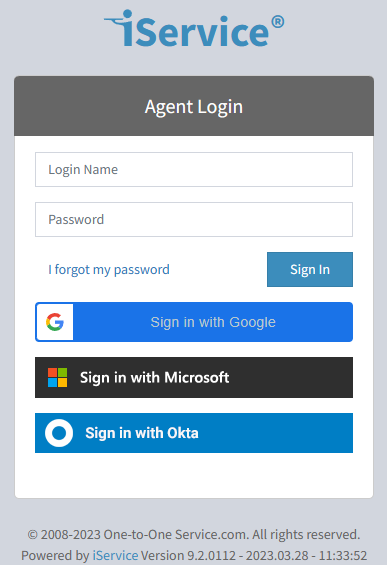 The Open ID login buttons
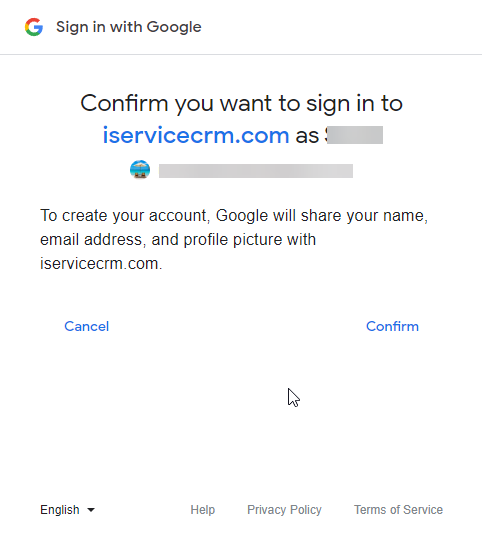
To connect your Google, Microsoft, or Okta account to your iService agent login, click the Sign In with button. If you are not logged into your identify provider's account, you will be prompted to authenticate and grant permission before continuing.
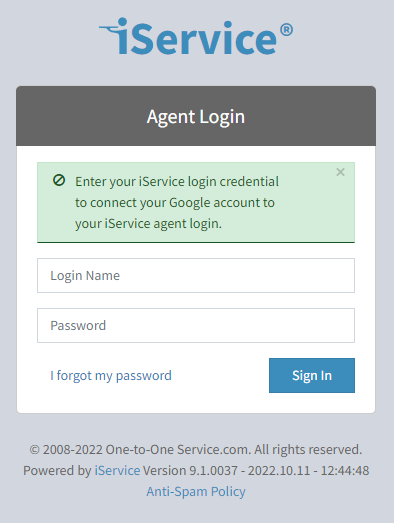
Once you are authenticated to your openID provider, you will be presented with an agent login screen. Enter your iService agent email address and password that was provided to you, as shown below to connect your iService agent to your Google or Microsoft account.
After you enter your iService agent email address and password, click sign In. This will add your account ID to your iService contact, and future logins will not require you to enter your email and password.
If you attempt to connect your social login to a customer contact from the agent login page, you will received the error below.
We're sorry, but this page is only for iService Agent Login. The account details you entered are not for an agent.
 Trying to connect a customer account to an agent login |
If you forget your password and need to reset it, use the forgot password link on the login page.
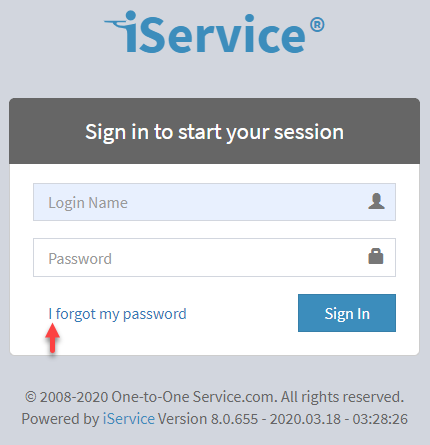 The forgot password link
This link will open a page where you can enter your email address and request a reset.
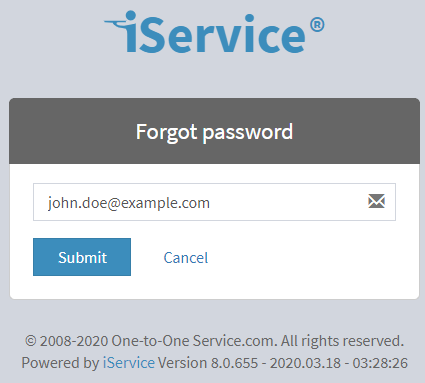 Entering your email address in the password reset page
After you submit your email, you will receive a message with a link for changing your password. The password reset notification template is customized for every installation, but should look similar to the example below.
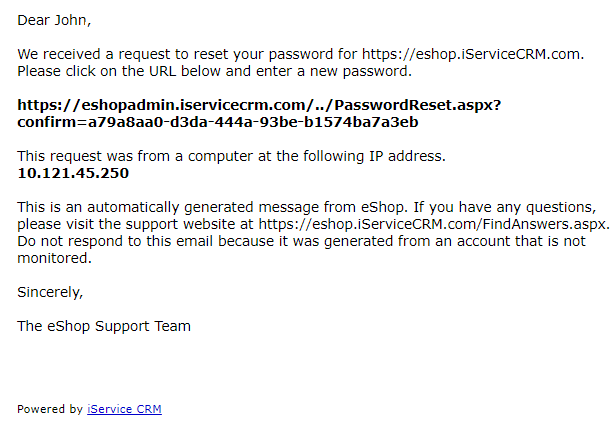 An example password reset template
The URL in the email will expire after 10 minutes.
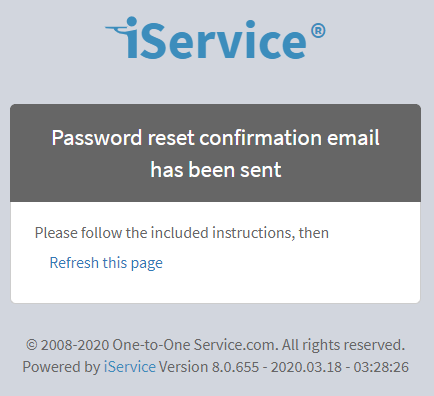
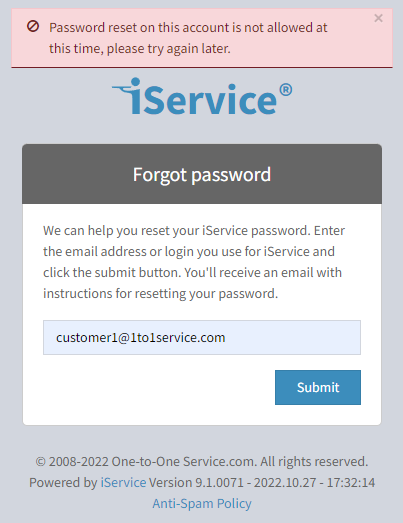
Waiting period for additional requestsTo protect against abuse, you must wait 10 minutes before requesting another password reset email. If you attempt to request a 2nd reset right away you will see an error message.
Password reset on this account is not allowed at this time. please try again later.
|
Error displayed if logged into agent pages as a customer
iService includes customer portals and the ability to create an unlimited number of custom forms to help customers. Customers can log into those forms to access information, such as their contact properties, subscriptions, and interaction history. These pages are typically loaded from a URL that looks like
https://tenantURL/f
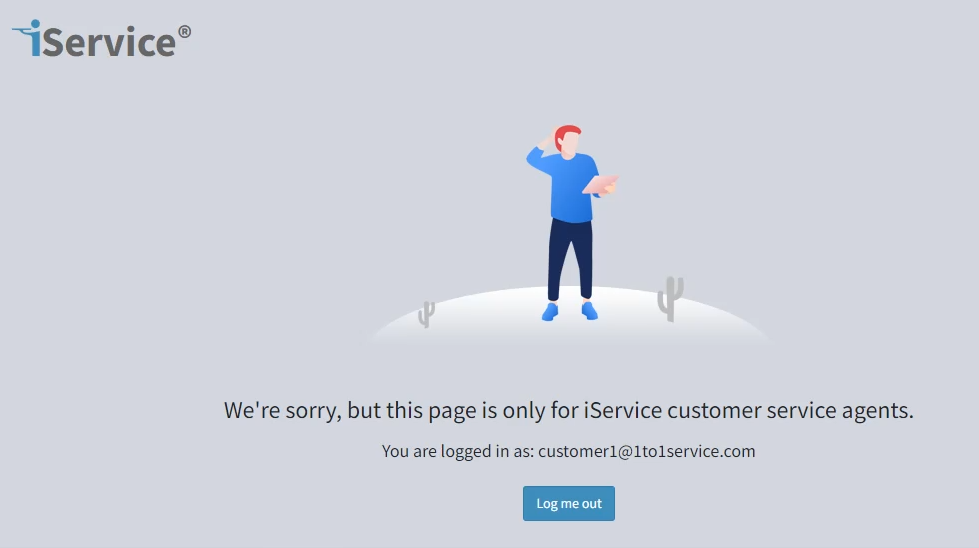
If a customer logs into iService but navigates to the agent pages at
https://tenantURL/app
they will be shown an error page similar to below. This informs them that they are in the wrong place and shows the login they used. From time to time, agents might login with an alternate email they used for testing or interacting with your tenant. If that occurs they will see this page and should logout and log back in using their assigned agent login.
 Logged into /app as a customer |
© 2008 - 2026 One-to-One Service.com, Inc. All rights reserved.