|
Navigation: Admin Pages > Tools > Server Process Management Salesforce Sync |
Scroll Prev Top Next More |
 The Salesforce Sync tab on the Server Process Management page is where you enable, disable, and monitor the synchronization process. Navigate to Admin > Tools > Server Process Management and click the Salesforce Sync tab. The Salesforce Sync page has three sections: Sync Process Controls, Outbound Queue, and Inbound Queue.
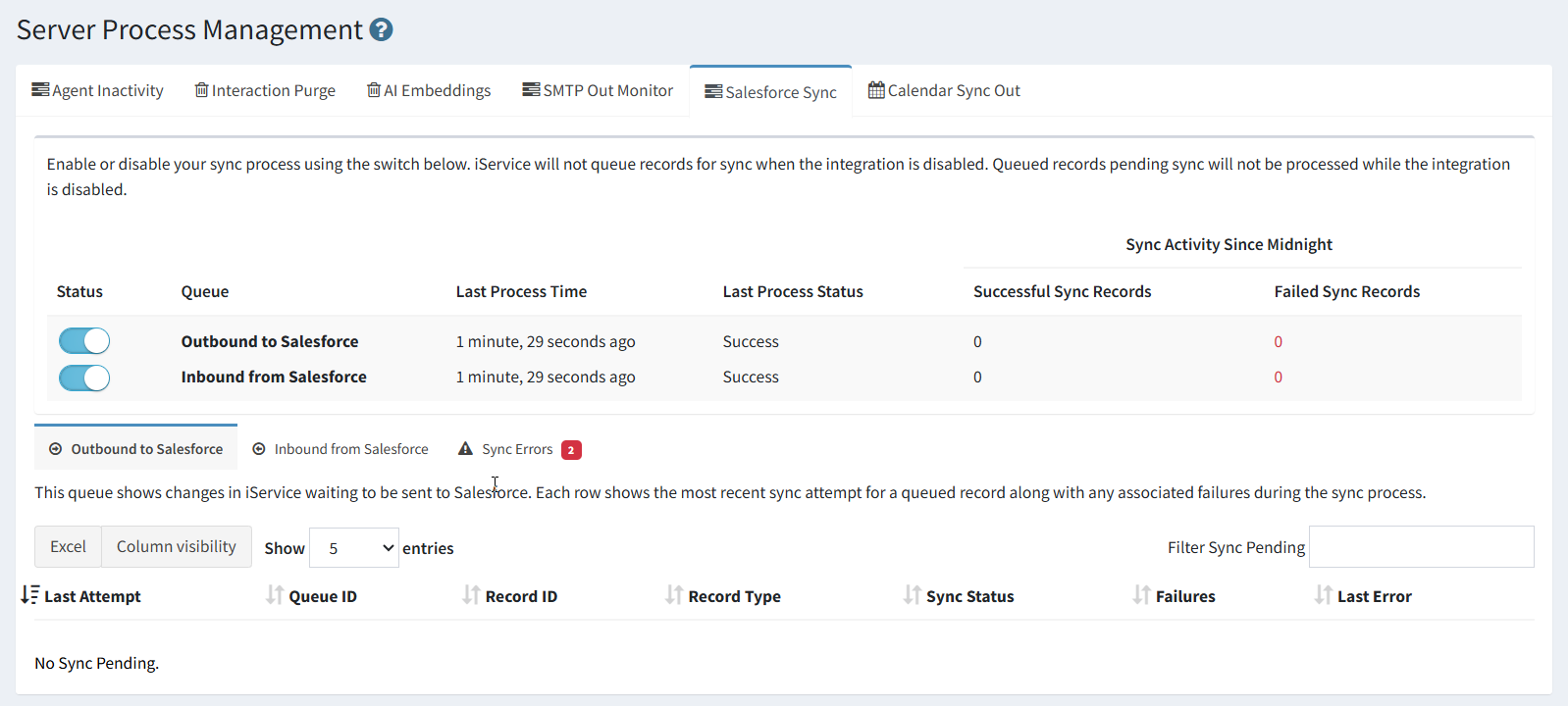

The top of the page displays the current sync process status along with independent controls for each sync direction:
Outbound to Salesforce — Controls whether changes made in iService are synced to Salesforce. Inbound from Salesforce — Controls whether changes made in Salesforce are synced to iService.
These two directions operate independently. You can enable outbound sync while leaving inbound disabled, or vice versa. This gives you granular control during initial setup or troubleshooting — for example, you might enable only inbound sync first to pull Salesforce data into iService before turning on outbound.
Important: When a sync direction is disabled, iService will not queue new records for that direction, and any records already queued will not be processed until sync is re-enabled.
Process Status SummaryThe status area shows at-a-glance information for the sync process:
|

Below the status summary, two tabs display the pending and recently processed sync records:
Outbound to Salesforce — Shows changes made in iService that are waiting to be sent to Salesforce. Inbound from Salesforce — Shows changes detected in Salesforce that are waiting to be applied in iService.
Both tabs display the same column layout and behave identically.
|

# |
Column |
Description |
|---|---|---|
1 |
Last Attempt |
The date and time of the most recent sync attempt for this record. |
2 |
Queue ID |
A unique identifier for the sync queue entry. |
3 |
Record ID |
The iService record ID (e.g., a Contact ID) associated with this sync entry. |
4 |
Record Type |
The Salesforce object type — Account, Contact, or Case. |
5 |
Sync Status |
The current state of the sync record: In Queue (waiting to be processed), Success (synced successfully), or Failed (sync encountered an error). |
6 |
Failures |
The number of failed sync attempts for this record. A record that fails will be retried on subsequent sync cycles. |
7 |
Last Error |
The error message from the most recent failed attempt, if any. Use this to diagnose sync issues such as field validation errors or permission problems in Salesforce. |
Sync errors are displayed in the Sync Errors tab with a badge that shows the number of errors.
|
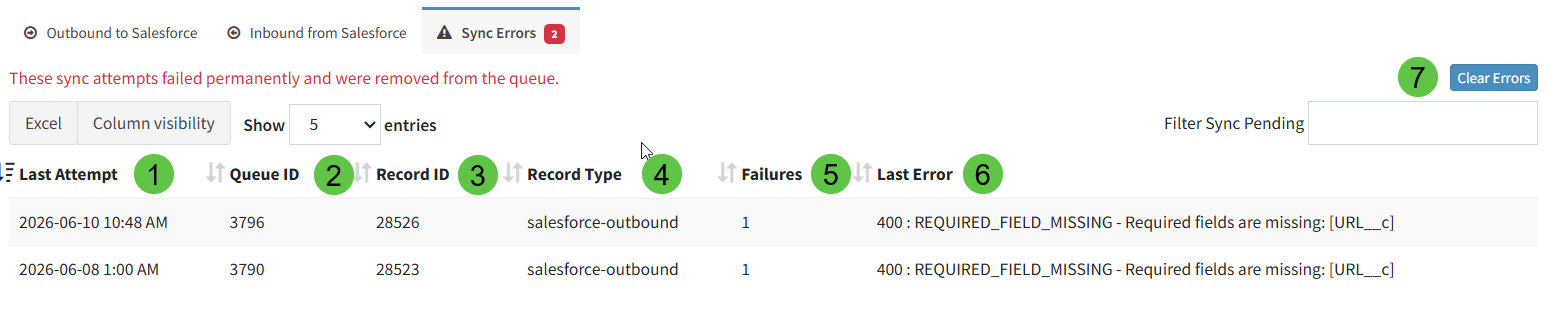
1.A mapped field changes in iService (or Salesforce, for inbound sync). 2.iService creates a sync queue record containing the record ID, record type, and all currently mapped field values. 3.Every 2 minutes, the sync process runs automatically and processes all queued records. 4.For each record, iService sends the mapped field values to the target system in the direction configured on the Manage Salesforce Mappings page (see Section 2). 5.Successfully synced records are cleared from the queue. Failed records remain in the queue with an incremented failure count and the error details recorded in the Last Error column. |
|
© 2008 - 2026 One-to-One Service.com, Inc. All rights reserved.