|
Navigation: Admin Pages > Settings > Segment Settings Topics |
Scroll Prev Top Next More |
 Topics are a critical part of iService. They are used to organize answers within the iService knowledge base and to create message queues for routing questions to customer support representatives. Topics are organized into a hierarchical topic tree as "branches" or topic categories that can be publicly visible or private. You can learn more about topics in the Understanding Topics chapter.
Because interactions are associated with topics, deleted topics are not removed from the database. Their status is marked as deleted and they're removed from your view of the topic tree. You can display deleted topics and restore them by changing their visibility to public or private. However, there are various impacts related to deleting topics that you should consider.

The Show Deleted Topics toggle

The Topic List panel is different from most of the other settings pages in iService. Every topic has a parent, except for the root topic of the segment. Instead of a flat list of values, iService presents existing topics in a way that reflects a tree structure so you can visually see the hierarchy. The Topic List is a data table and operates similar to other data tables in iService.
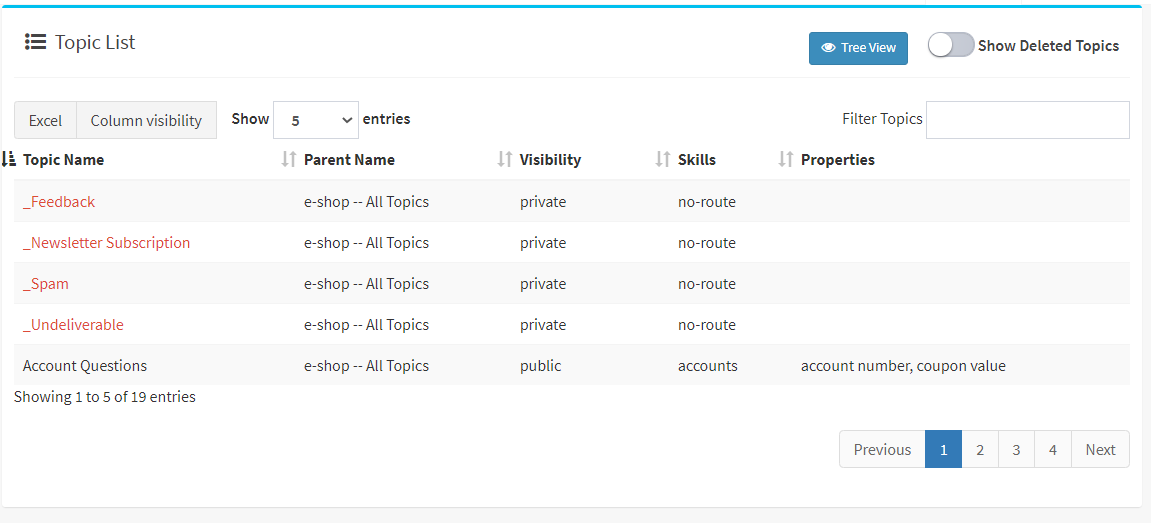 The Topic List in Segment Settings
The Topic List table shows the parent for each topic, but the best way to view hierarchy is to click the Tree View button in the top right corner of the topic list.
The Tree View Button
 Use the Tree View button to open the top tree display
When you click the Tree View button, a lightbox is opened on the page with a graphical display of all your topics. This hierarchical view of topics is used on pages that show the entire topic tree, such as Manage Messages or Manage Chats. Click a topic in the tree to load its settings panel.
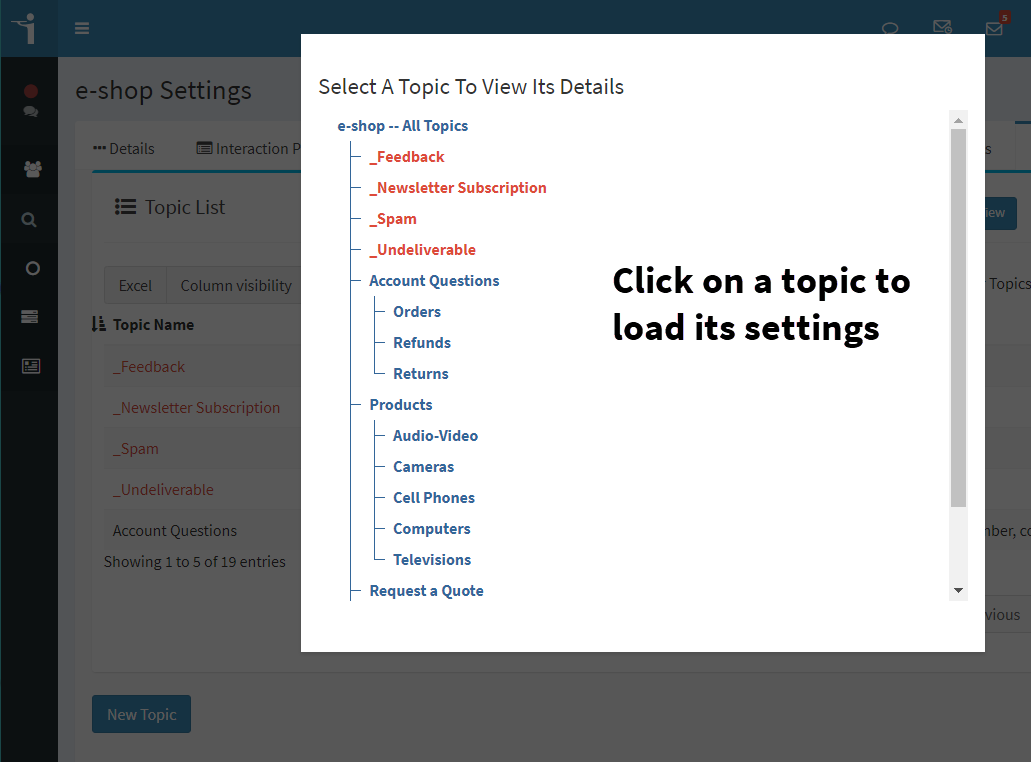 The topic Tree View lightbox |
To create a new topic, click on the New Topic button to show the New Topic panel.
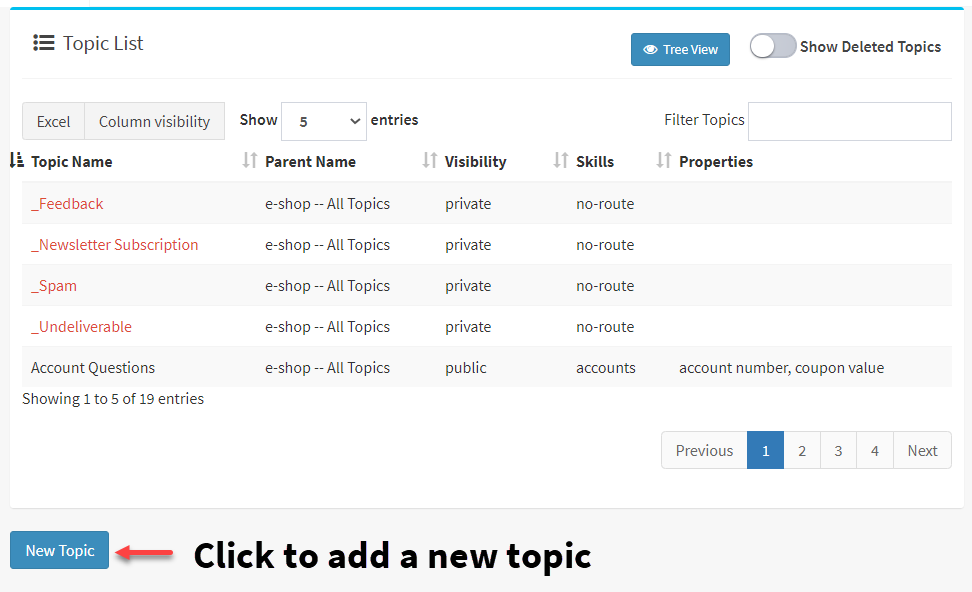 Creating a new topic Enter the name of the new topic and set its values. The topic name is also displayed in the knowledge base page to internal and external customers, so choose a meaningful name. Click Create to save your new topic.
The various settings are explained in the Topic Details Panel section below. |
The details for the selected topic are displayed in the Topic Details panel. After changing any details for the topic, you must click the Save button or changes will not be saved.
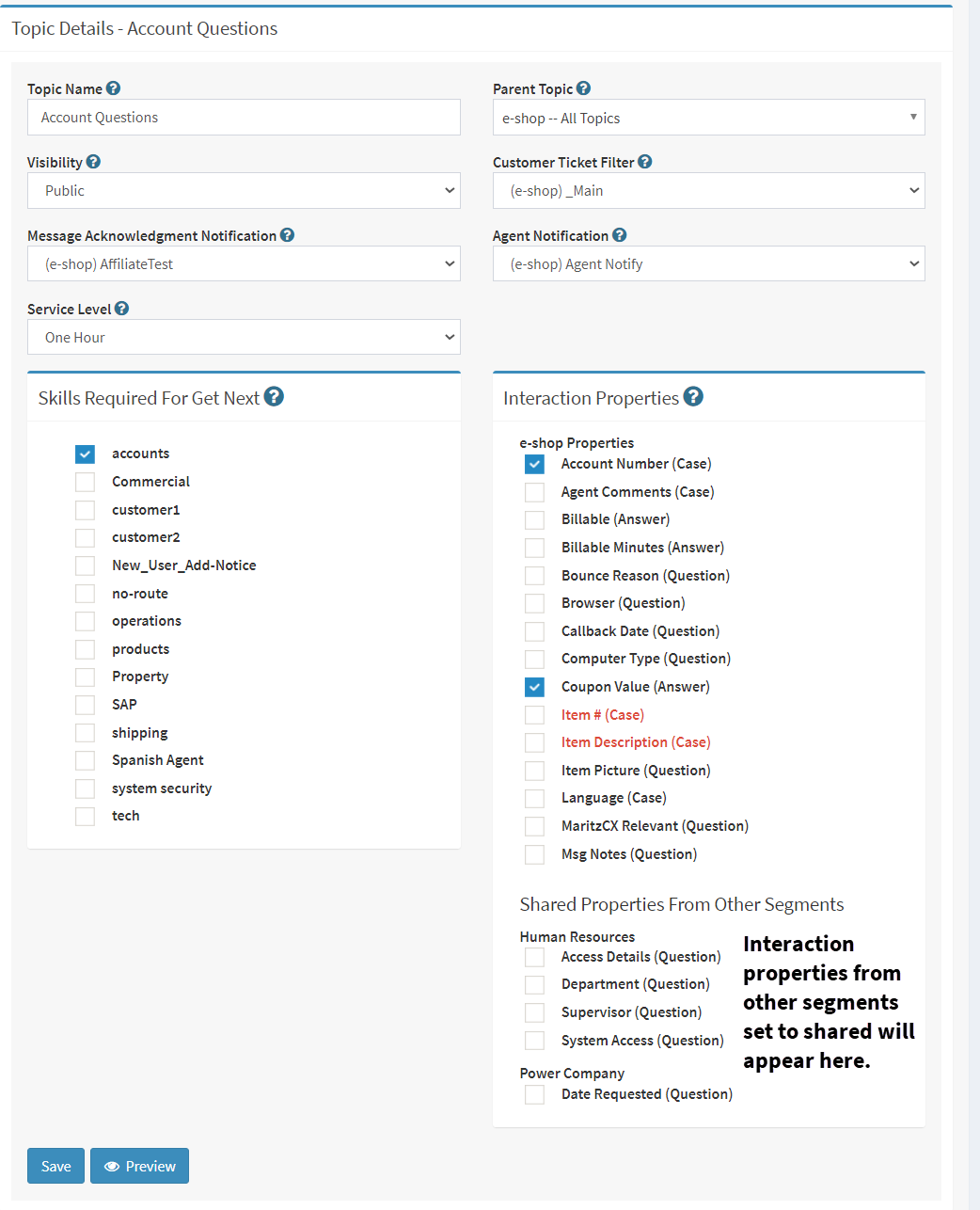 Editing the details of a topic
Topic Name - The topic name is display in topic menus and all pages where a topic is selected (e.g., Manage Messages). It can also be displayed to customers (if visibility is public), so always use a meaningful name.
Parent Topic - Topics are hierarchical, and the parent topic determines where the topic exists within the hierarchy.
Visibility - Select whether you want the topic to be visible as public (anonymous and customer user types may view this topic), private (viewable by agents only), or deleted (not viewable by any users).
Customer Ticket Filter - If you would like to filter messages that are received through Customer Ticket Forms (i.e., not incoming email), select the appropriate filter from the drop down menu. These filters will be applied to questions that are submitted from a customer ticket form only. To filter questions submitted via email, add a filter to the Mailbox.
Agent Notification - Select the auto response that should be sent to agents when a new message arrives.
Service Level - You can assign a service level to any topic, and if it is lower than the segment default it will be adopted by all interactions queued within the topic.
Only topic skills are set from this panel. Interaction Property based skills are attached to any question that has the property value. Those skills are not tied to topics, so they are configured in the Skills menu and do not require any association with a topic.
Interaction Properties – Interaction properties can be presented to customers when they fill out a Customer Ticket form, or to agents when they compose their answer. If you associate interaction properties with the topic, they will automatically be presented in the iService user interface for interactions in that topic. |
When a standard segment is created, it is automatically populated with three topics that should not be deleted.
All Topics - "All Topics" is the initial root parent of the topic tree for the segment. It is named All Topics because when viewed from the Topic Tree, all topics within the segment are displayed below it. It can be renamed as desired to reflect how you intend to configure iService (e.g., Other Questions).
_SPAM - The spam topic is used to separate spam messages and improve the accuracy of reports. The Message Queue - SPAM button will automatically change the topic of the message to _SPAM, and therefore this topic should not be removed. In addition to the SPAM button, you can create filters to identify messages that are spam and move them to this topic.
_Undeliverable - This topic is used to route bounced messages that do not require a response. It is typically used with a set of bounce filters that will identify undeliverable notices and move them into this topic. You should not delete or change this topic. |
Default Mailbox Topics - If a topic is used as the default topic for a Mailbox, new questions will be placed into the deleted topic queue. These will not be routed to agents since the topic is deleted. You will need to ensure that any mailboxes using the topic are switched to another topic.
Change Topic Filters - You might have filters defined that change the topic of an interaction to the topic automatically. You will need to update those filters to use a different topic, or remove the filter altogether.
Unresolved Questions - if you have unresolved questions associated with the topic, they will be removed from the manage messages page. Users may not see these questions and will not be able to select them. You should ensure all of the questions in the topic are resolved before you set it's visibility to deleted.
Workflow Mapping - If you have any workflow forms that create interactions in the topic, you will need to select a new topic from within the workflow configuration.
Custom Forms - If you have any custom forms that save interactions in the topic, you will need to select a new topic from within the form configuration.
|
 Topics are the primary method for queuing questions and are referenced in various places. Before you set the visibility of a topic to Deleted, you should consider the following impacts.
© 2008 - 2026 One-to-One Service.com, Inc. All rights reserved.